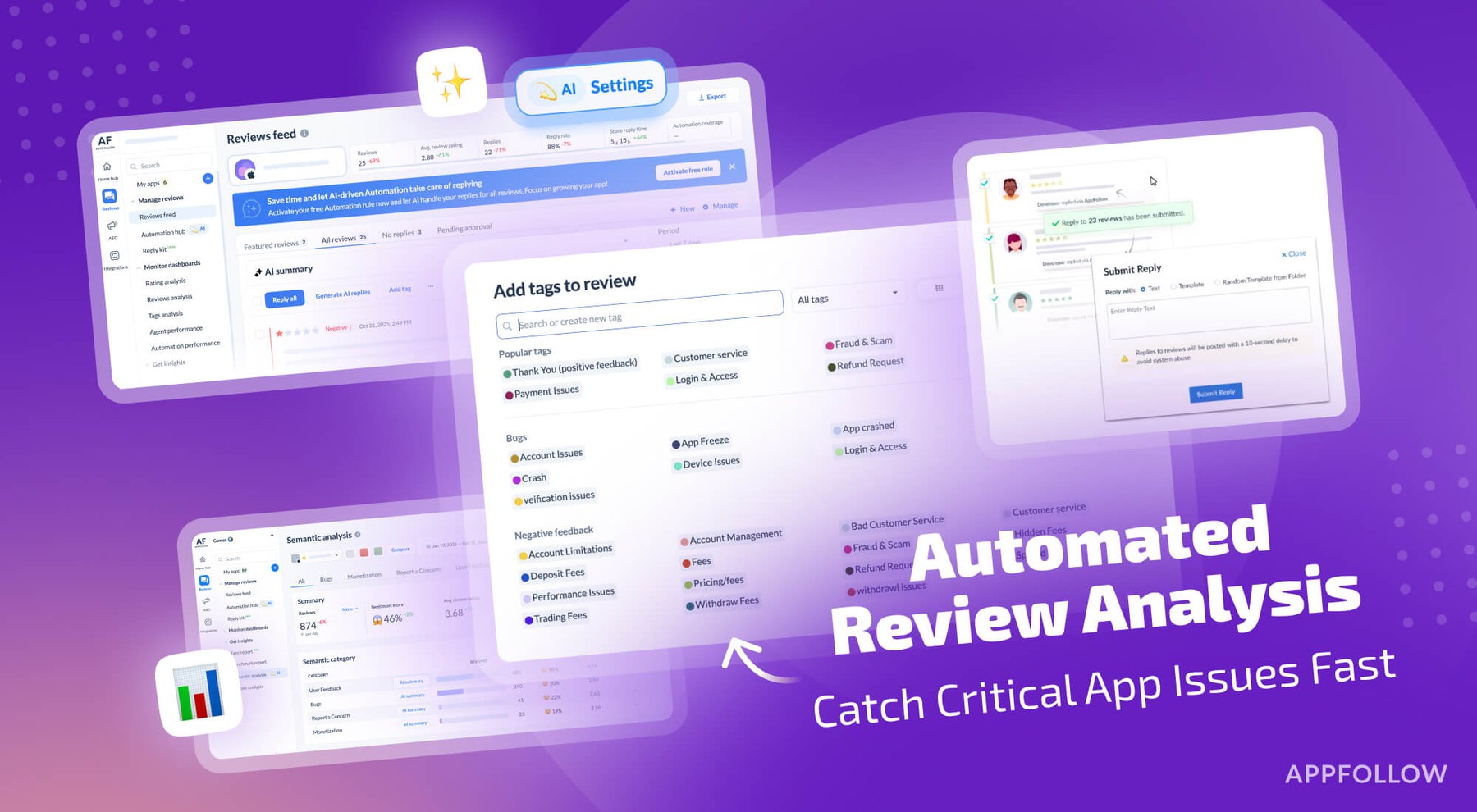
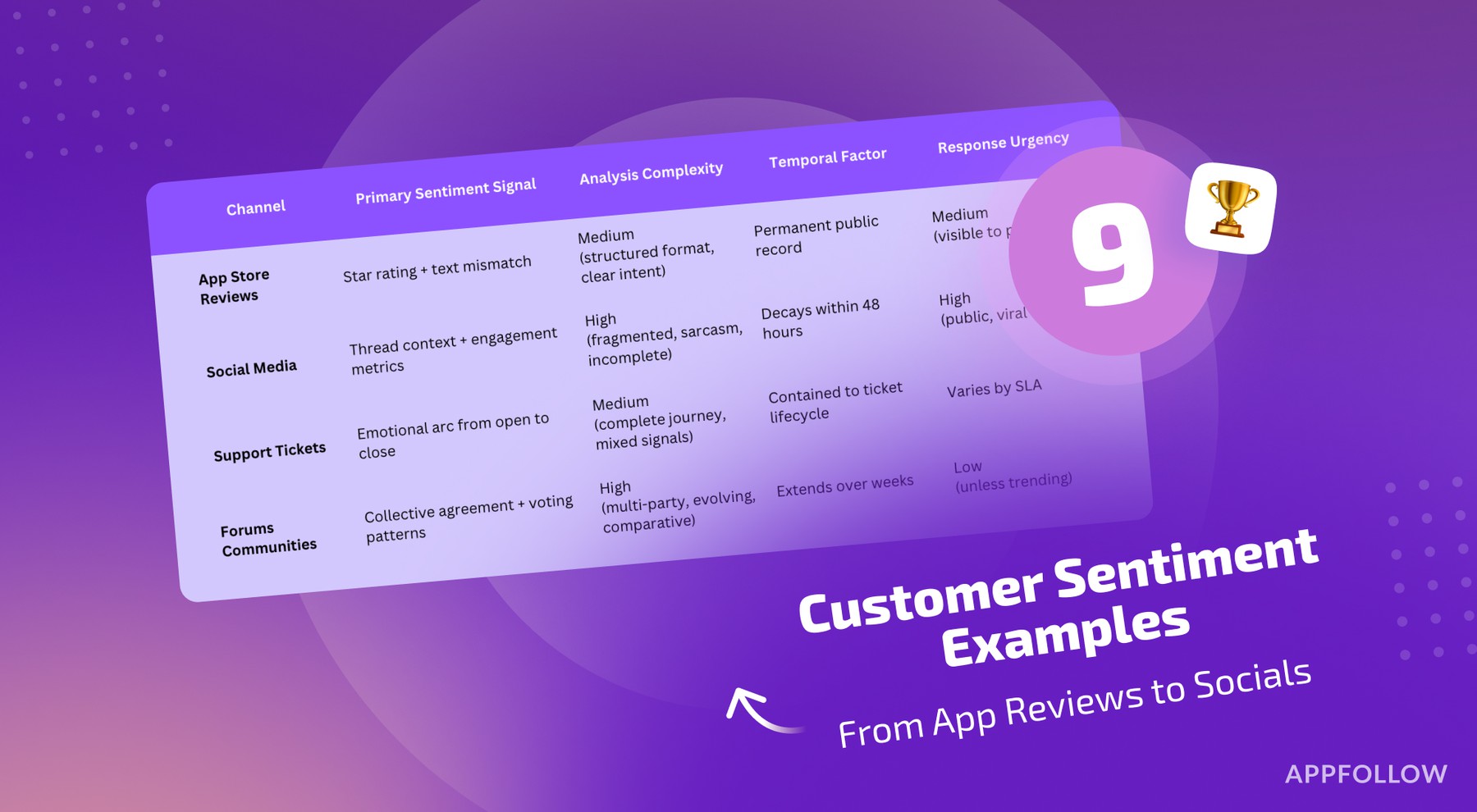
Ratings & Reviews performance provides an overview of what users think of your app. Here are the key metrics to help you identify how your app is rated by users and how successful is your review management strategy.
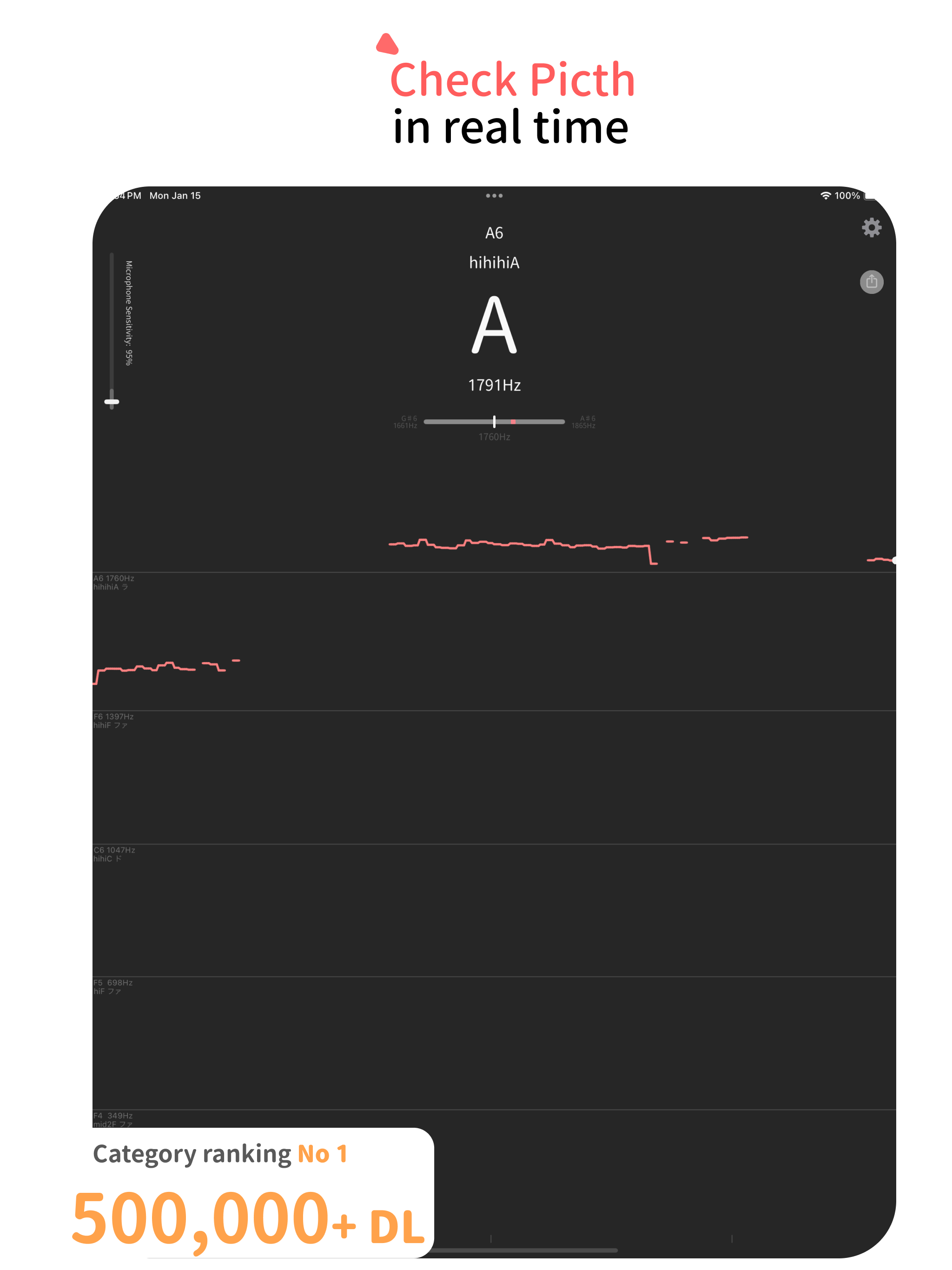
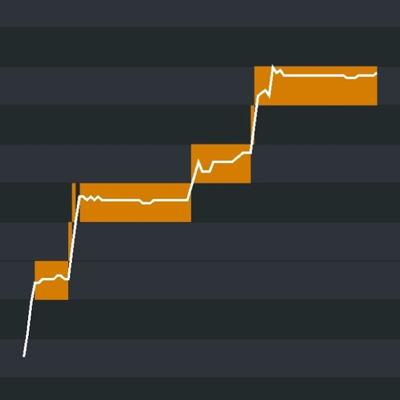
The app analyzes real-time audio from your microphone and displays musical note, pitch, octave, frequency, and waveform information. It also includes a Metronome feature (Beta), allowing you to set the tempo and practice with sound and vibration cues. ■ Usage Examples - Measure vocal range - Practice absolute pitch - Detect the musical notes of a song (pitch detection) - Vocal exercises - Karaoke practice - Improve pitch accuracy - Measure frequency - Voice training - Basic instrument tuning (use it as a tuner) - Do, Re, Mi note detection - Rhythm practice using the metronome You can pause the analysis with a tap, allowing you to review the results at your own pace. The display also supports notations such as low A, mid2 A, hihi A, etc. ■ How to Use Simply launch the app, and it will automatically measure the pitch of sounds captured by the microphone — whether voice or instruments. To avoid picking up small sounds and background noise, slide the “Microphone Sensitivity” bar in the upper-left corner upward. The metronome can be used by simply setting your desired tempo. ■ Settings Tap the gear icon in the top-right corner to access the following settings: - Toggle between sharp and flat notation - Change the large center display notation (Do, Re, Mi / C, D, E, F, G, A, B) - Set the reference pitch - Adjust pitch detection speed - Set the metronome tempo ■ FAQ Q. I want to measure my vocal range. A. The app displays extended ranges such as hihi A and lowlow A for your reference. Q. Pitch is displayed even when it’s quiet. A. Even in very quiet environments, tiny background noise may be detected. To prevent this, slide the “Microphone Sensitivity” bar upward to ignore softer sounds. Q. I want to use it as a tuner. A. No special settings are required. However, switching the large center display from "Do, Re, Mi" to "C, D, E, F, G, A, B" may be more convenient. Tap the gear icon and change the “Large Display Notation” setting. ■ Other Information Permissions: - Microphone: Used to analyze audio input - Siri & Search, Cellular Data: Used for AdMob advertisements Terms of use can be found here: https://shigeki.work/pitchchecker/termsofuse For bug reports or inquiries about the app, contact via the app's settings (bug report or inquiry) or email support (replace the at symbol with @): support at shigeki.work. Feel free to use this app on media platforms such as TV.