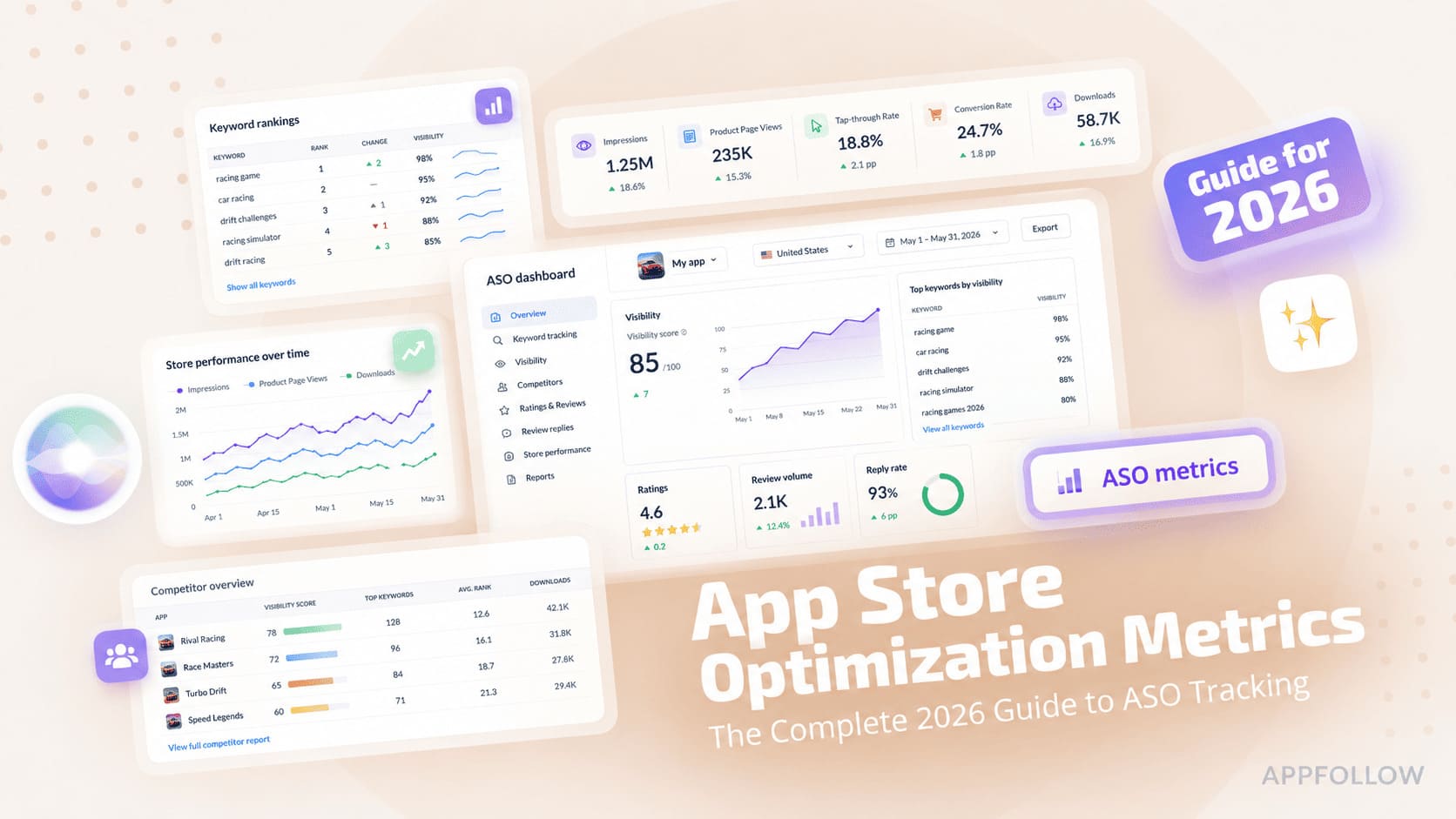
Ratings & Reviews performance provides an overview of what users think of your app. Here are the key metrics to help you identify how your app is rated by users and how successful is your review management strategy.
 5.0
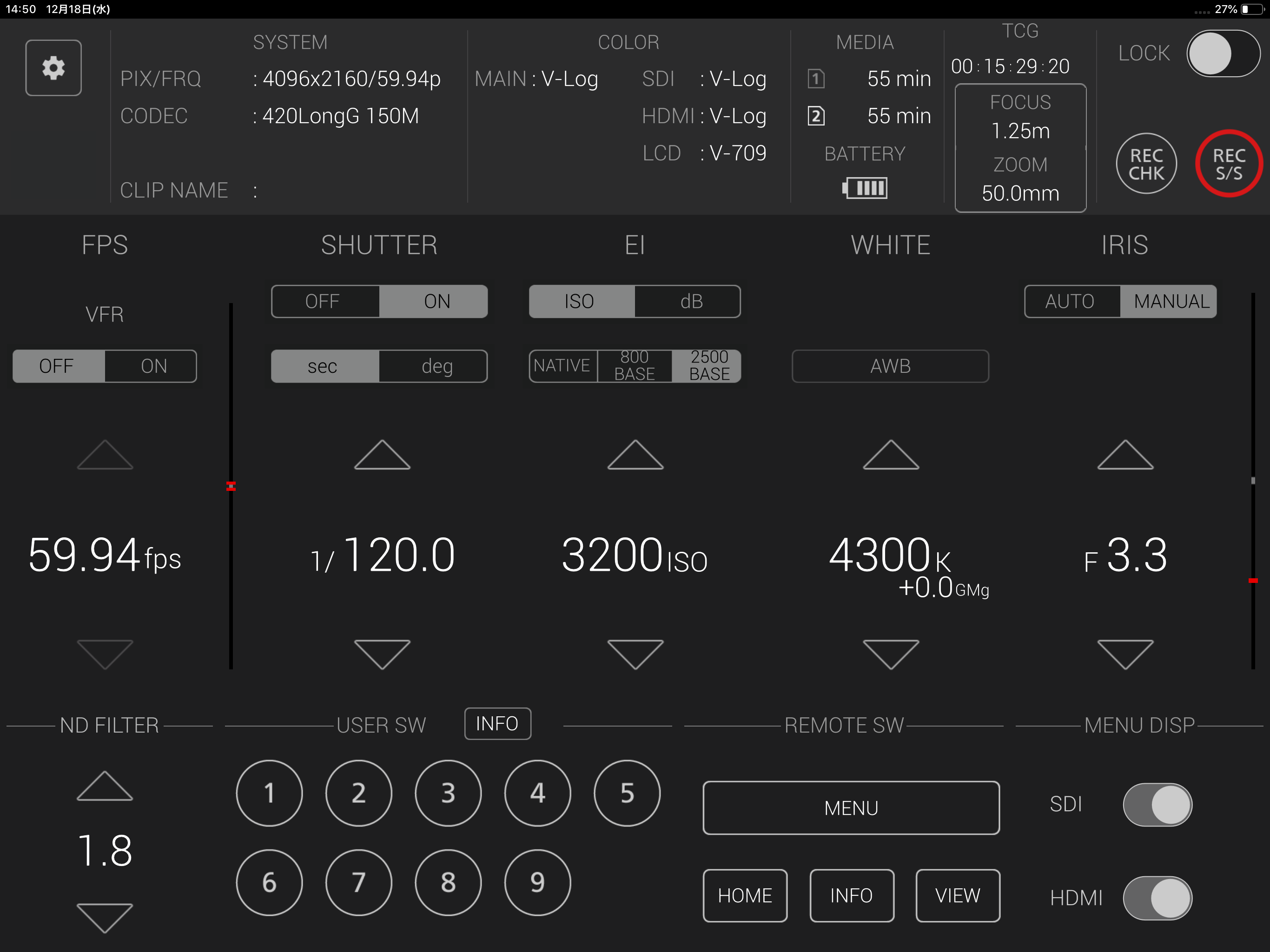
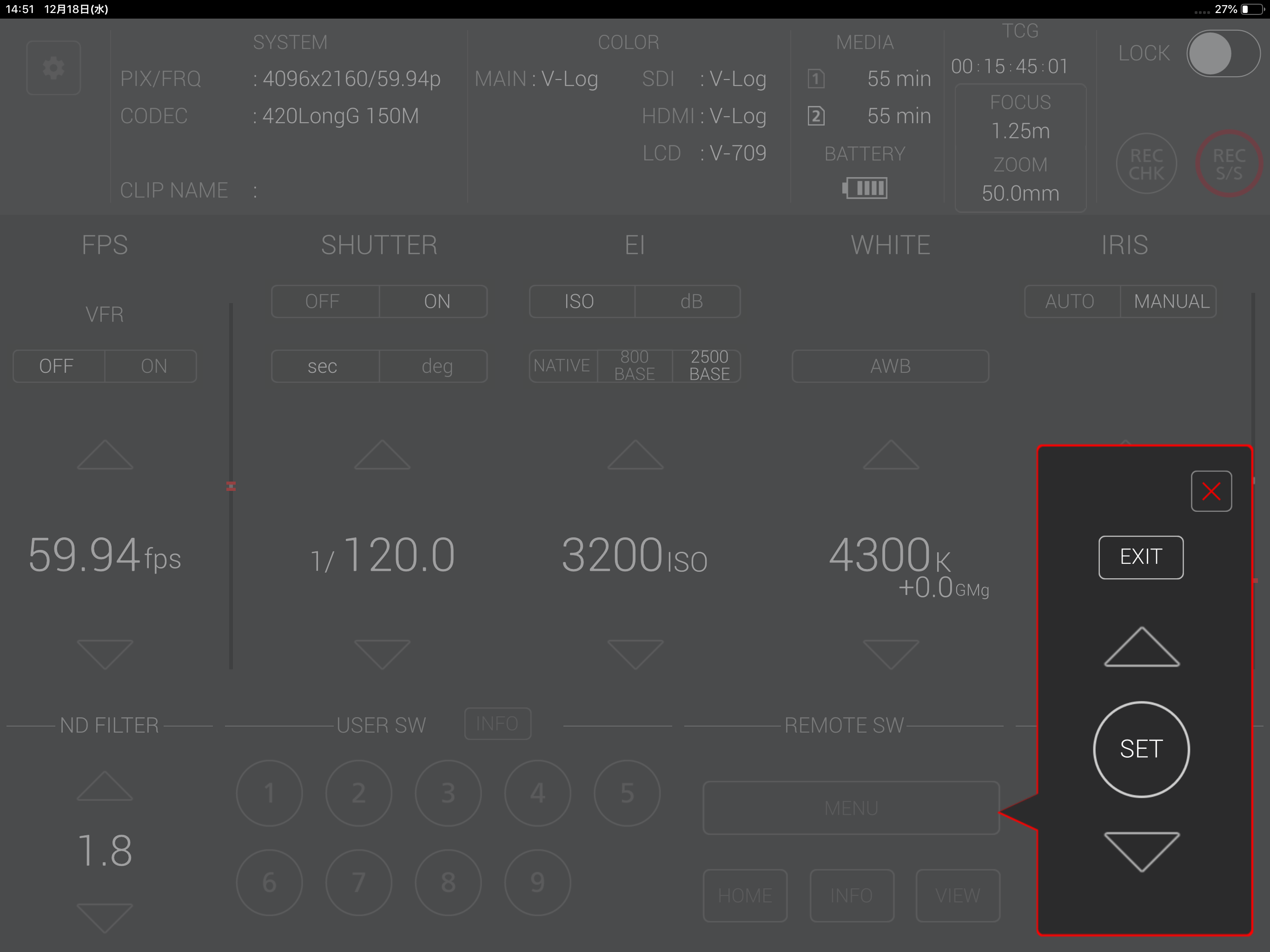
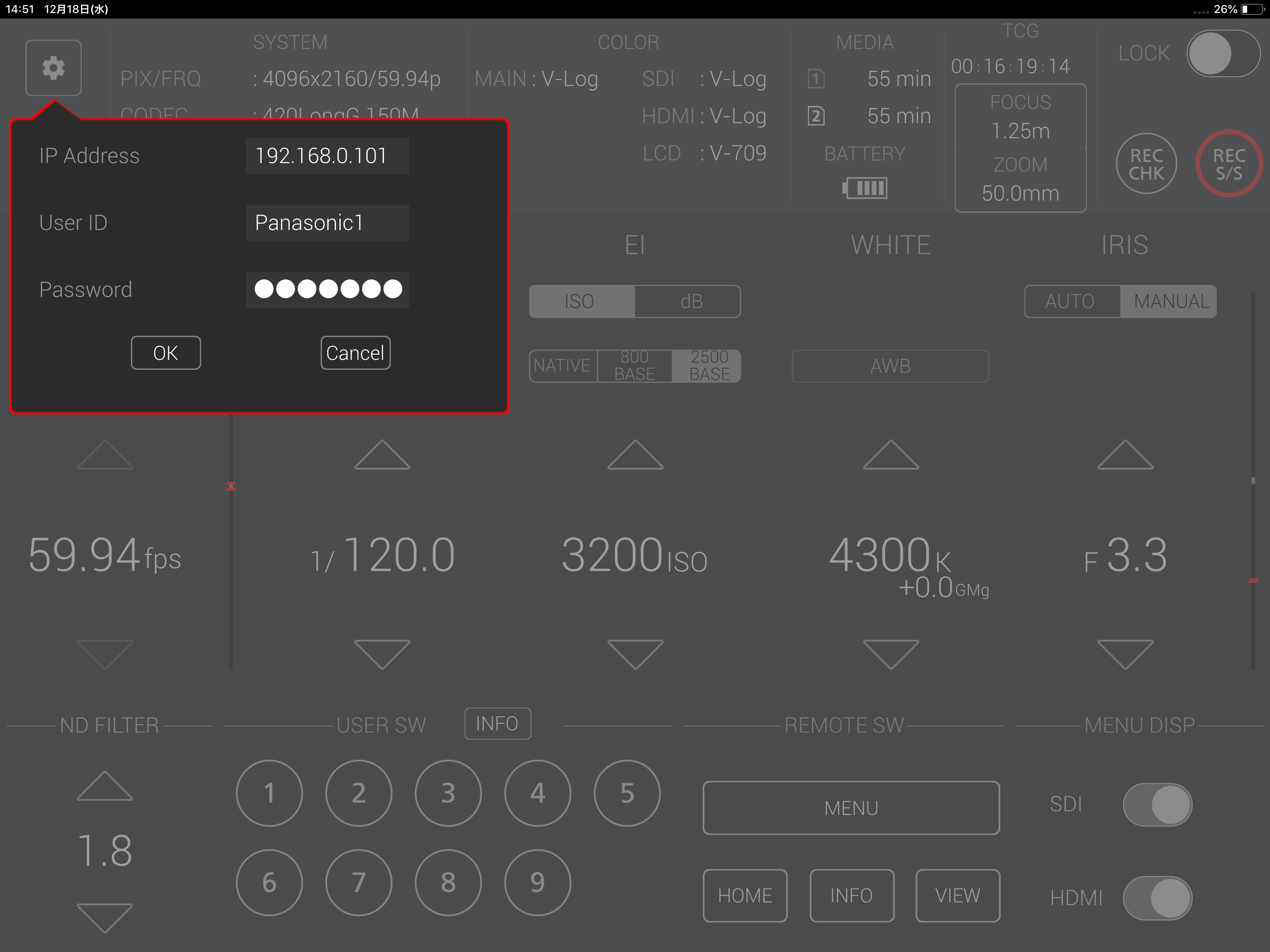
5.0・ Name of App EVA ROP (EVA Remote Operation Panel) ・ Description EVA ROP is a control program that enables the wireless remote control of the "AU-EVA1" camera. It provides a GUI that displays status information, settings and user switch status in a single screen and the ability to change camera settings intuitively using a screen touch. Buttons such as user buttons and REC S/S button in screen can manipulate AU-EVA1. Please refer to the EVA ROP application manual for connection and usage. * Note: For wireless LAN connection with the camera, a wireless module needs to be purchased separately. Refer to the web page for the wireless module. ・ Applicable Model AU-EVA1 ・ Supported OS iOS 12 or later ・ Features 1. Camera status display - System mode and color settings - Remaining time of recording media - Battery remaining time - TCG(Time Code) - Zoom value - FOCUS(m/ft toggle switch) 2. Status display and settings for the following items - FPS - SHUTTER - EI - WHITE BALANCE - IRIS - ND FILTER 3. Record Control REC S/S button in screen allows Rec start and stop. 4. USER SWITCH CONTROL Each of Nine User buttons in screen can perform function assigned to its corresponding user button in connected AU-EVA1 5. Switching Control in Camera LCD status display MENU, HOME, INFO or VIEW button in screen can switch Camera LCD display to the corresponding screen. Menu operation panel which shows up by MENU button can manipulate menus in connected AU-EVA1 6. MENU DISPLAY Control SDI or HDMI button in screen can toggle its corresponding output signal flow 7. Control for ZOOM and FOCUS Zoom and FOCUS can be controlled in the ZOOM/FOCUS control panel. Also, the m/ft switch can change display units of FOCUS. [NOTE] In iOS 11, camera information may not be displayed correctly on the app screen. This can be fixed by turning on airplane mode and then turning off again. ・SETTINGS 1. Close "EVA ROP". 2. Select "Settings" on the device home screen 3. Turn on "Airplane mode" 4. Turn off "Airplane mode" 5. Launch "EVA ROP" *These settings need to be repeated after turning off or restarting the device.

![[Webinar recap] What fintech apps get wrong (and right) in the app stores](https://cdn.appfollow.io/blog/static/appfollow_126bb420-cee0-4ea0-9a8c-6c1d9871175f.jpg)